Publer AI Assist Course: Create Smarter Social Media Content (Not Just More Posts)
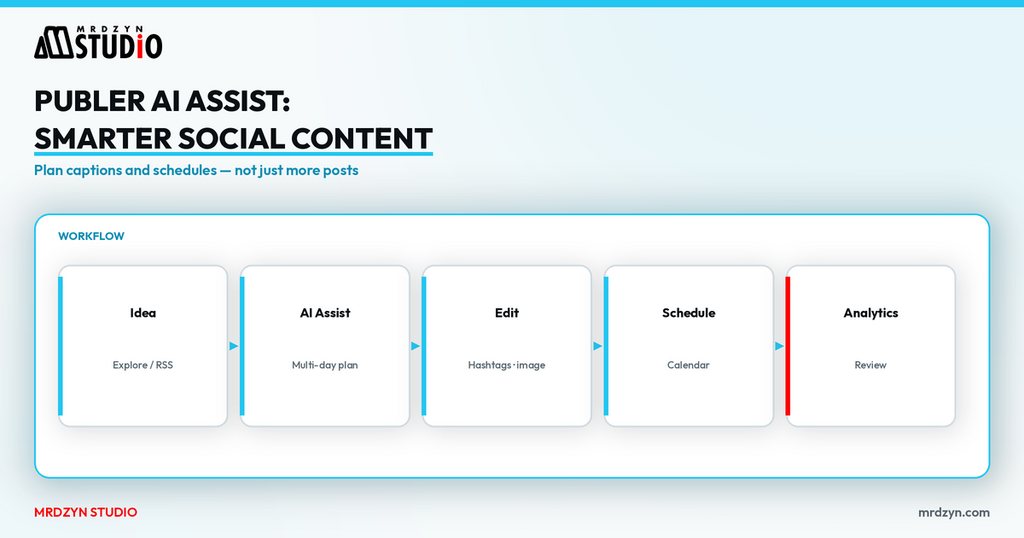
Most people use AI to create more social posts. Better social media managers use AI to create a clearer strategy — captions that match the brand, posts that fit each channel, and a calendar people can keep.
This page is the written companion to my Publer AI Assist crash course. It walks through the same workflow I show on video: dashboard and ideas, AI Assist for multi-day content, brand voice, workspaces, media library, calendar, Kanban, and analytics. Prices below are from Publer's official help/pricing pages checked on 9 November 2026 (Asia/Manila). They change; confirm on Publer before you buy.
Watch the crash course
Full video: Publer AI Assist Course on the Mike Rosales Mrdzyn Studio channel. Try Publer via my link: publer.com/mrdzyn.
The short answer
- Start from the dashboard (Kanban + upcoming calendar + last-7-day stats), not from a blank caption box.
- Use Publer AI Assist inside the composer so you do not hop to a separate chat tool for every draft.
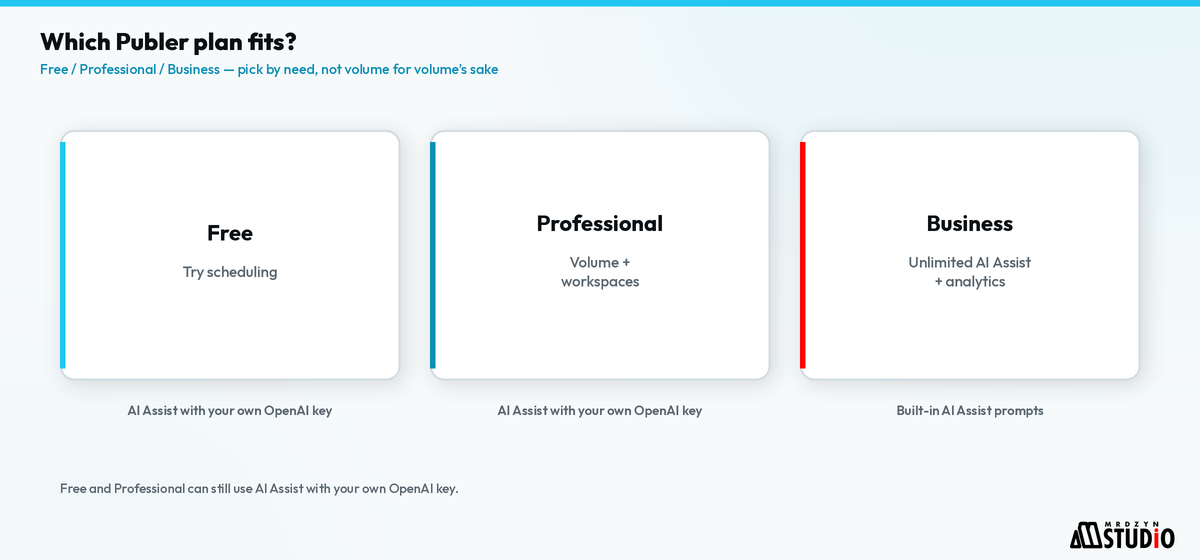
- Paid Publer plans include more scheduling power; Business includes unlimited AI Assist prompts. On Free or Professional you can still use AI Assist by connecting your own OpenAI account (you pay OpenAI for those prompts) — per Publer's AI Assist help articles checked the same day.
- Or work from ChatGPT with the official Publer MCP plugin (Business/Enterprise): plan, write, and schedule without leaving the chat.
- Set a brand voice per workspace so captions stop sounding generic.
- Finish in calendar + analytics, not in the prompt box.
What Publer is (and what AI Assist is for)
Publer is a social media management tool: connect accounts, draft and schedule posts, keep a media library, collaborate on ideas, and review analytics. In the course I note it was previously available on AppSumo; the product today is a normal subscription with a free tier.
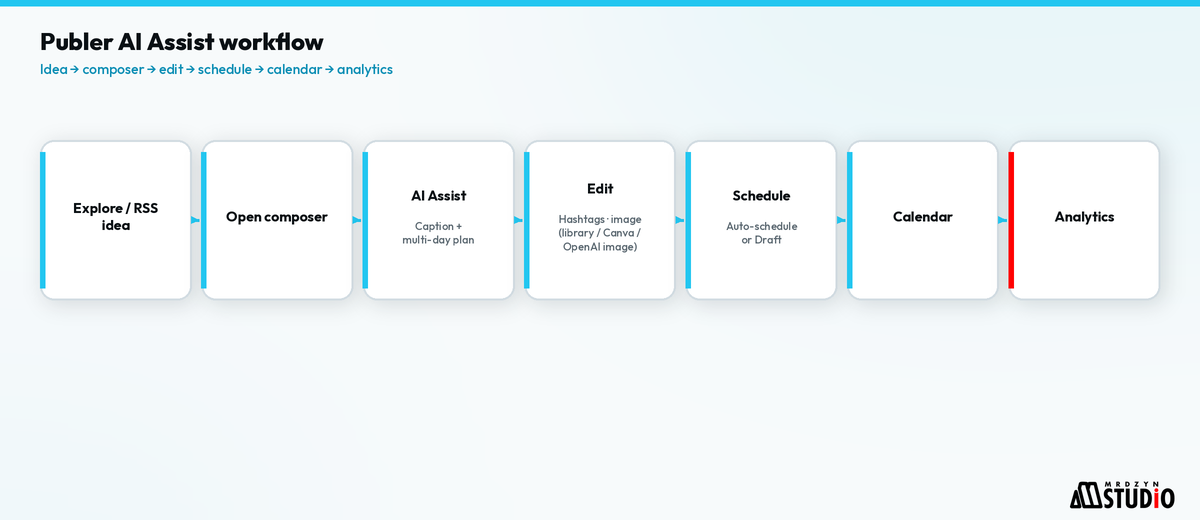
AI Assist sits in the create flow. You prompt it the way you would a chat model — for example, a five-day Facebook series for a studio about Canva, Sitejet, and ChatGPT-style AI tools — and it returns day-by-day caption options you can edit before scheduling.
Publer's own help pages (checked 9 Nov 2026) describe AI Assist as helping with text and images for posts, articles, comments, thumbnails, and more, and say results are better when the prompt includes content need, tone, goal, and specifics.
Plans that matter for this workflow
From Publer's plans & pricing help (updated 15 September 2026; checked 9 Nov 2026):
| Plan | Starts at (USD) | Useful for this course |
|---|---|---|
| Free | $0 forever | 1 user, 1 workspace, up to 3 social accounts (excluding X/Twitter), 10 scheduled posts per account at a time, 25 drafts, 24-hour published history |
| Professional | from $5/month (1 social account, 1 user) | Unlimited scheduling & drafts, unlimited workspaces & media storage, X/Twitter, RSS automations, Explore/trending, team members |
| Business | from $10/month (1 social account, 1 user) | Everything in Professional plus unlimited AI Assist prompts, advanced analytics, best times to post, hashtag suggestions, recycling/recurring posts, approval workflows |
| Enterprise | Custom | Volume discounts, onboarding, priority support |
Yearly billing is listed at a 20% discount vs monthly. Price rises with more social accounts and additional members (the owner does not count as an additional member; every 10th account/member is free per Publer's help text). Confirm the live total on Publer Plans.
Step 1 — Learn the dashboard before you prompt
In the video I start on desktop (Publer also has a mobile app). The home view mixes:
- A Kanban of ideas (to-do / in progress / in review / done).
- A calendar strip of upcoming posts.
- Last-7-day stats and a path into fuller analytics.
- Inspirations — news/RSS, competitors, trending posts via Explore.
Multiple workspaces are a paid-plan feature in the walkthrough; Free is capped at one workspace on Publer's help page. Use Explore and RSS when you need raw material; do not treat trending posts as a strategy by themselves.
Step 2 — Create with Publer AI Assist
Open a new post from the dashboard. With AI Assist available (Business, or your own OpenAI key on Free/Professional):
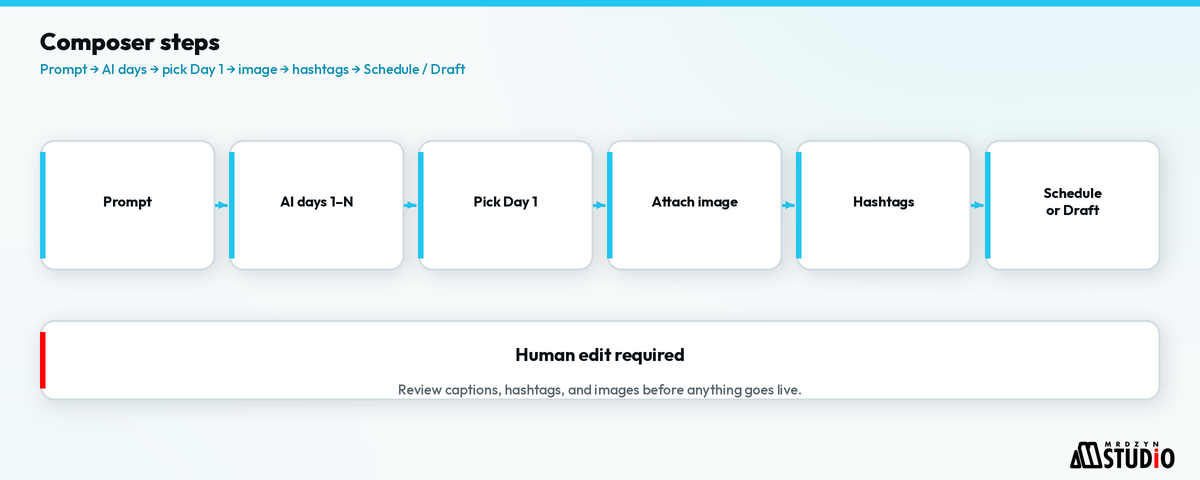
- Ask for a concrete series — topic, channel, number of days, CTA style.
- Wait for the day-by-day options (in the demo: Day 1 Canva, later days continuing the series).
- Edit before you schedule. AI drafts are a start, not a publish button.
- Add media: Publer library, Canva, OpenAI image generation, VistaCreate, and other integrations shown in the composer.
- Use hashtag suggestions when they return cleanly (APIs can fail occasionally — retry or write your own).
- Optional: location tags, signatures, auto-share rules, and a first comment shortly after publish on supported networks.
- Choose Publish now, Schedule, Auto-schedule, recurring/recycle (Business features on the pricing help page), or Save draft. Preview per network — Instagram still expects image/video, not text-only.
Step 3 — Brand voice so the AI sounds like you
Publer can learn a brand voice from guidelines, writing samples, or style guides. In the course I set a simple default voice for my workspace and apply it so Assist stays consistent. You can draft custom instructions in another AI chat, then paste them into Publer.
One workspace = one brand context. Agencies: separate workspaces per client rather than one blended voice.
Step 4 — Workspaces, media library, calendar, Kanban
- Workspace settings: logo, brand voices, team members, connected social accounts.
- Media library: published assets sync back so you can reuse them.
- Calendar: filter scheduled / published / drafts per channel.
- Ideas Kanban: collaboration board — notes, tags, AI enhance on an idea card.
- Analytics: brand-level or per channel (in the demo I filter YouTube vs a travel channel). Publer surfaces views, engagement, and suggested best times where the network API allows; some metrics are limited by the platform.
Bonus path — Publer inside ChatGPT
Publer also ships an official ChatGPT integration: in ChatGPT Plugins you add a custom MCP app named Publer (MCP server https://mcp.publer.com, OAuth). Publer's docs say this MCP path is available on Business and Enterprise plans (Publer × ChatGPT; How to connect ChatGPT with Publer's MCP, updated 16 October 2026; both checked 9 Nov 2026).
Once connected, Publer's help page lists what you can ask ChatGPT to do through Publer: create posts and drafts (text, images, video, carousels, Reels, Stories, and other supported types); schedule, AutoSchedule, publish, recycle, or set recurring posts; use Media Library assets; manage accounts, workspaces, drafts, and published posts; check analytics and competitor data where supported; and generate content ideas and captions. Always review the account, copy, and schedule before anything important goes live — same human gate as the in-app composer.
I use this path myself: from ChatGPT I plan, write, and schedule posts through Publer instead of hopping back into the Publer UI for every draft. The crash-course composer walkthrough above still applies when you prefer the full calendar and Kanban on screen.
Where this fits in a real Mrdzyn workflow
For studio brands and client socials, Publer is the scheduling and drafting layer. Copy and visuals still need a human gate before they go live — the same principle as our human-gated AI delivery pipeline.
When posts need images that already live in WordPress, ImageUpWP is the Chrome path into the media library. When leads come from Messenger or site chat, Mrdzyn Chatbots can hand them into a CRM instead of leaving DMs in a screenshot folder. Other products sit on the Mrdzyn products page.
FAQ
Do I need Business to try AI Assist?
Business includes unlimited AI Assist prompts. On Free or Professional you can connect your own OpenAI account and use Assist without Publer charging extra for those prompts (OpenAI bills you). Source: How to activate AI Assist, checked 9 Nov 2026.
Can Free schedule X/Twitter?
No. Free excludes X/Twitter; Professional and above support it. Same help article date as above.
Will AI Assist replace a social media manager?
No. It speeds drafting and multi-day planning. Strategy, approvals, and community replies still need a person.
Can I run Publer from ChatGPT?
Yes. Add the official Publer MCP plugin in ChatGPT (Business/Enterprise on Publer's side). Publer's docs cover create, schedule, manage, and analyze flows from the chat. Sources linked in the ChatGPT section above.
Does Publer post to WordPress?
In the course I show WordPress as a publish target alongside social networks. Confirm the account types you need on Publer's platform list before you commit.
Next step
If you want a social + CRM + chatbot stack that fits a Philippine SME — not a pile of disconnected tools — book a free 15-minute discovery call: calendar.app.google/NJvDbppn2QYqGryb9.