ChatGPT Work Tutorial: Turn Old Chats Into Finished Work
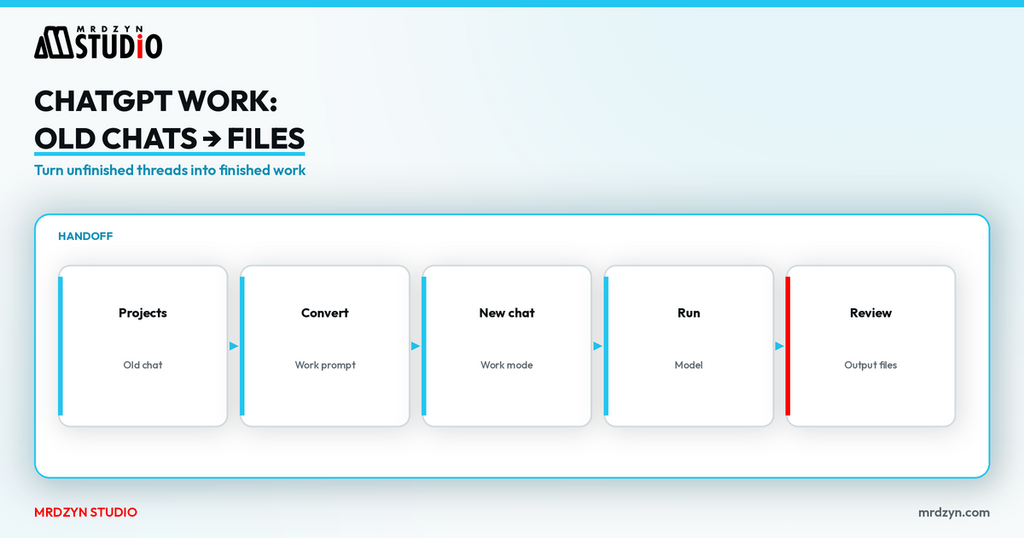
Regular ChatGPT Chat is for answers and short drafts. ChatGPT Work is for longer, multi-step jobs that should end in a file you can review — a document, deck, spreadsheet, or similar deliverable.
OpenAI's own get-started guide describes the same split: use Chat for explanations and brainstorms; use Work when you want a clear outcome built with files, plugins, and tools, with you still approving important actions (Get started with ChatGPT Work, checked 9 November 2026 Asia/Manila).
This page follows my short course: take an existing chat, convert context into a Work thread, then let Work produce tangible outputs while you stay in control.
Watch the crash course
Full video: ChatGPT Work Tutorial.
Disclaimer (same as the video): this is a software demonstration, not legal or regulatory advice. Any privacy, GDPR, or AML-related document must be reviewed by qualified legal, privacy, and compliance professionals before you rely on it.
The short answer
- Keep related threads in Projects (and pin what you reuse).
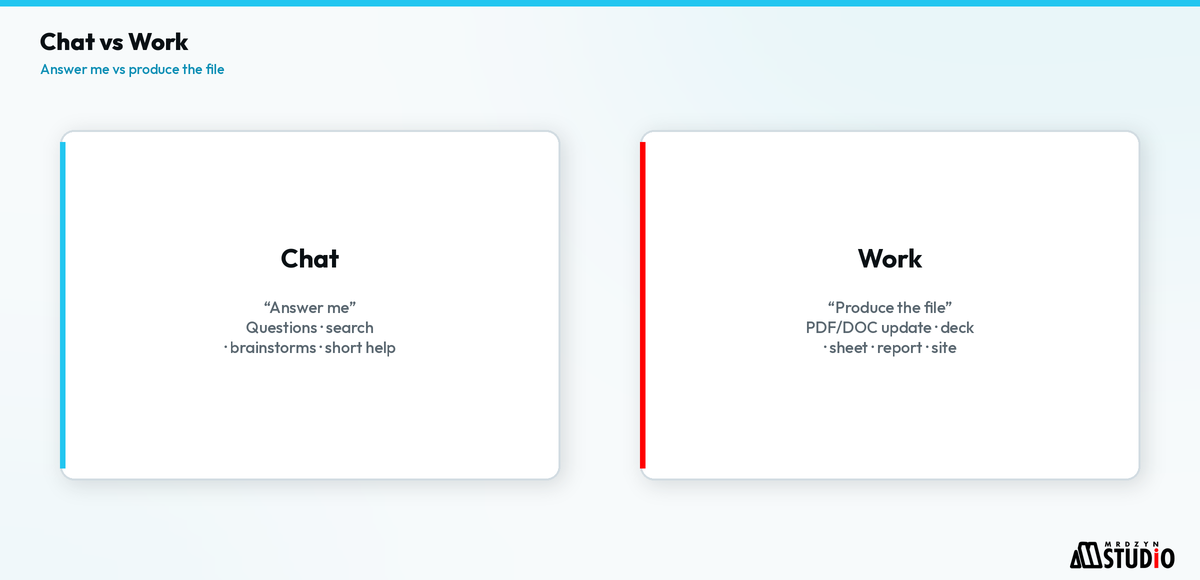
- To move an old Chat into Work: ask ChatGPT to generate a handoff prompt, copy it, start a new chat under Work, paste, and run.
- Work surfaces outputs and sources (files, sites) as first-class artifacts — not only chat bubbles.
- Use plugins/integrations when the task needs Docs, mail, calendar, CRM, or design tools.
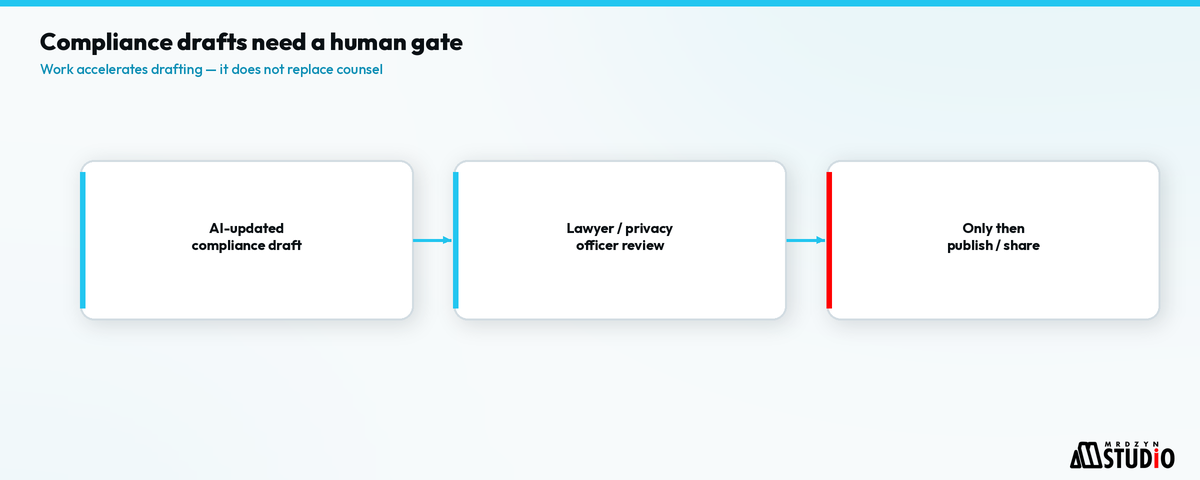
- For compliance-flavored edits, treat the model as a drafting assistant under a hard human approval gate — have a qualified professional review legal or compliance documents before anything is final.
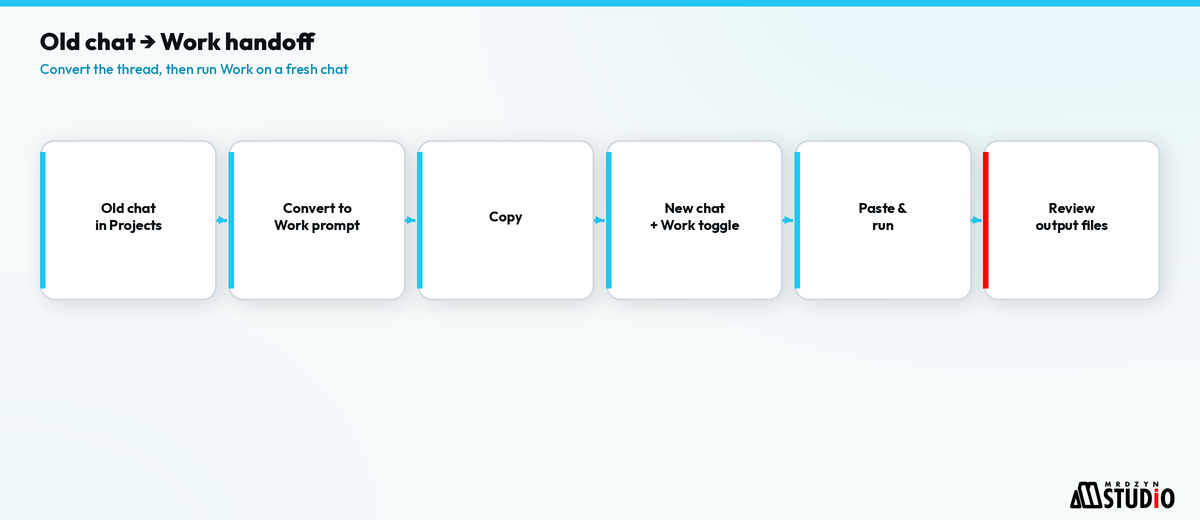
Chat vs Work (why the mode switch matters)
From OpenAI's learn docs (checked 9 Nov 2026):
- Chat — questions, search, brainstorms, short help.
- Work — research, analysis, or creation of documents, spreadsheets, presentations, reports, or sites; can use files, plugins, and approved tools; you can follow progress and approve actions.
- On desktop, Work may also use local files/apps/browser when your plan and permissions allow.
In the course I describe Work as the mode that does the work — it generates the artifact instead of only advising you how to write it.
Step 1 — Organize with Projects first
If you are new to ChatGPT, put ongoing client or research threads into Projects (folders) and pin the ones that matter. In the demo I open pinned projects before converting a thread. That organization makes the later Work handoff cleaner because related context is already grouped.
Step 2 — Convert an existing chat into a Work handoff prompt
Work mode is not always where your older threads live. The pattern I show:
- In the existing (non-Work) chat, ask to convert this chat thread into a Work chat / generate the prompt you need.
- Wait while ChatGPT drafts a self-contained handoff prompt.
- Copy the prompt.
- Start New chat, switch the composer to Work, paste, adjust model settings if needed, and send.
In the recording the model selector shows named options (I use one labeled Soul in that build). OpenAI's learn docs note that available models and credit use depend on your plan — pick what your account offers and check usage before a large task.
Step 3 — Read outputs and sources, not only the chat log
Once Work runs, generated files or sites appear in the outputs area; referenced files or websites show as sources. That is the practical difference from a classic chat: you leave with artifacts to download, edit, and file.
You can still move the Work conversation back into a Project so the deliverable and the thread stay together for the next revision.
Step 4 — Plugins and multi-step business tasks
Work is useful when the job spans tools. In the course I call out integrations such as Canva, Google Docs, Gmail, Calendar, video/agent helpers, HubSpot, and similar connectors, plus generation of PDFs, presentations, and spreadsheets. OpenAI's get-started guide likewise points you at the plugins library and @-mentioning tools inside prompts (checked 9 Nov 2026).
Example shape from the video: take an existing business document, upload it, and ask Work to produce an updated draft that considers the requirements you name. Guide it while it runs the longer task; then you review.
Work accelerates drafting. For legal or compliance documents, have a qualified professional review the output before you rely on it or share it as final.
A concrete Work pattern you can copy
Use this sequence the next time an old thread still has unfinished business:
- Open the old chat and write: “Create a single prompt I can paste into ChatGPT Work to continue this project. Include goals, constraints, source files mentioned, and the deliverable format.”
- Copy the generated handoff prompt; skim it for secrets you do not want in a new thread.
- New chat → Work → paste → add any missing files via upload or
@plugins. - Tell Work when to pause for approval (“draft only; do not send email; flag uncertain legal claims”).
- Download the output file, edit in your normal tool (Word, Docs, Notion), and store the approved version in the Project.
OpenAI’s get-started examples follow the same idea: clear outcome, named sources, reviewable file, human gate before anything is treated as final (learn.chatgpt.com, checked 9 Nov 2026).
What not to automate
Skip Work (or keep it on a short leash) when:
- You only need a definition or a one-paragraph rewrite — use Chat.
- The task requires signing, paying, or sending without a human — keep those off-limits in the prompt.
- The document is legal or compliance-related — drafting is fine; treat “done” as only after a qualified professional has reviewed it.
Where this fits in a real Mrdzyn workflow
This is the same philosophy as our human-gated AI delivery pipeline: models draft, humans approve, especially on privacy and regulated language. I recorded this walkthrough on ChatGPT Plus — and yes, it's awesome. For productized software and CRM/chat stacks, see mrdzyn.com/products and Mrdzyn Chatbots.
FAQ
Can I continue on phone after starting on desktop?
OpenAI documents cloud Work continuity across desktop, web, and mobile when your workspace enables it; local-only steps still need the connected computer online. See the same get-started page.
Is Work free on every plan?
Availability depends on plan and workspace settings. This recording was on ChatGPT Plus. Confirm in your account; OpenAI's marketing/help pages describe Plus, Pro, Business, Enterprise, and Edu eligibility in their own wording.
Should I use Work for a one-line rewrite?
Usually no — that is Chat. Use Work when the outcome is a deliverable or a multi-source task.
Does this replace a DPO or lawyer?
No. Have a qualified professional review legal or compliance documents before you rely on them.
Next step
If you want AI in your delivery process without losing the human gate, book a free 15-minute discovery call: calendar.app.google/NJvDbppn2QYqGryb9.