Noota AI Crash Course for Work: Meeting Notes, Summaries & Action Items
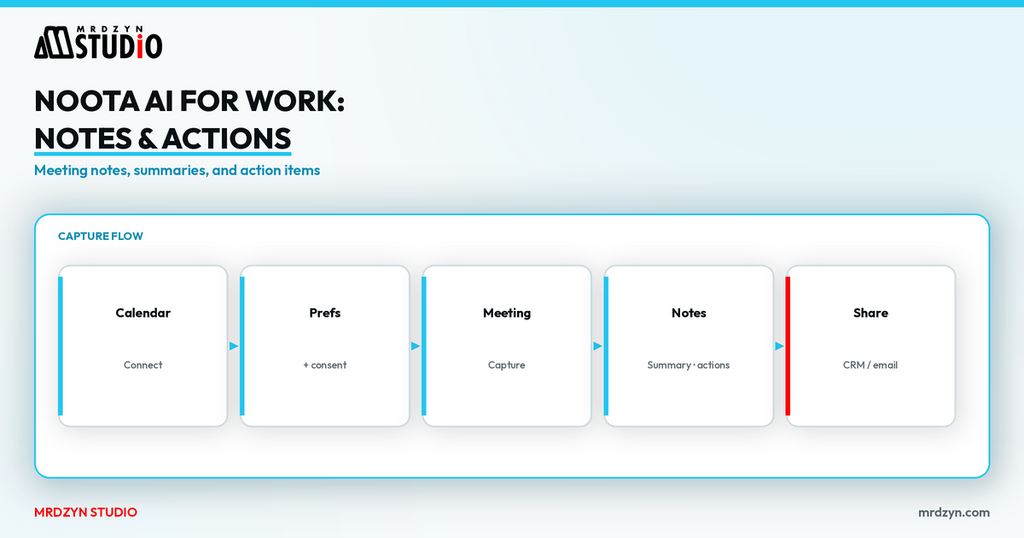
If your “notes” after a call are a half-finished Google Doc, you need a meeting assistant more than another notebook app. Noota (noota.io) records or joins meetings, builds transcripts, drafts summaries, and pulls action items so follow-up is not a memory test.
This page follows my Noota for Work crash course: preferences, consent, templates, capture methods, and integrations. Prices below are from Noota's pricing page checked on 9 November 2026 (Asia/Manila).
Watch the crash course
Full video: Noota AI Crash Course for Work. Signup via referby.mysoftwareadviser.com/noota.
The short answer
- Configure meeting preferences before your next call (auto-join, language, view, title rules, consent disclaimer).
- Pick a template (generic or custom) so summaries match discovery calls, interviews, or internal syncs.
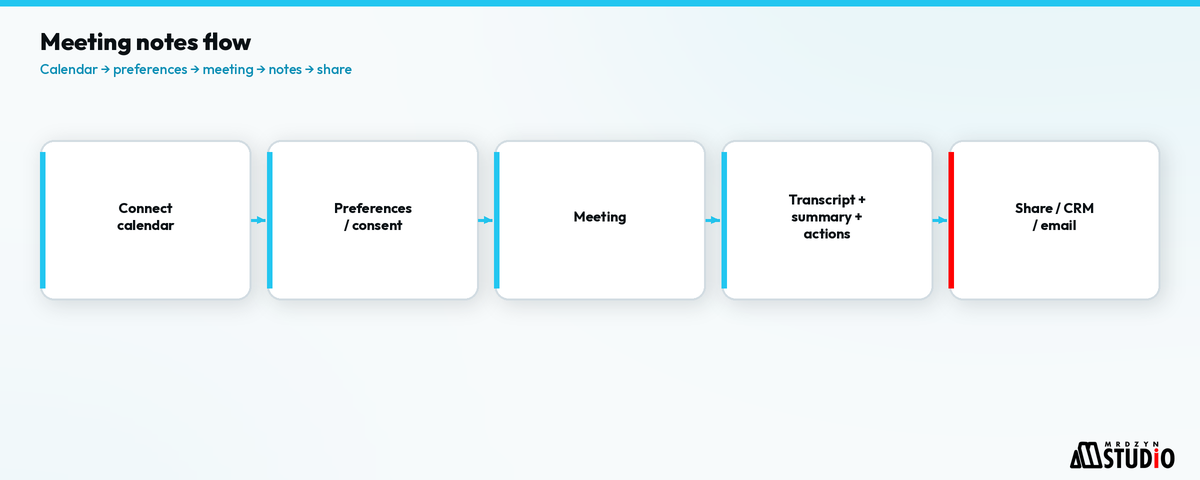
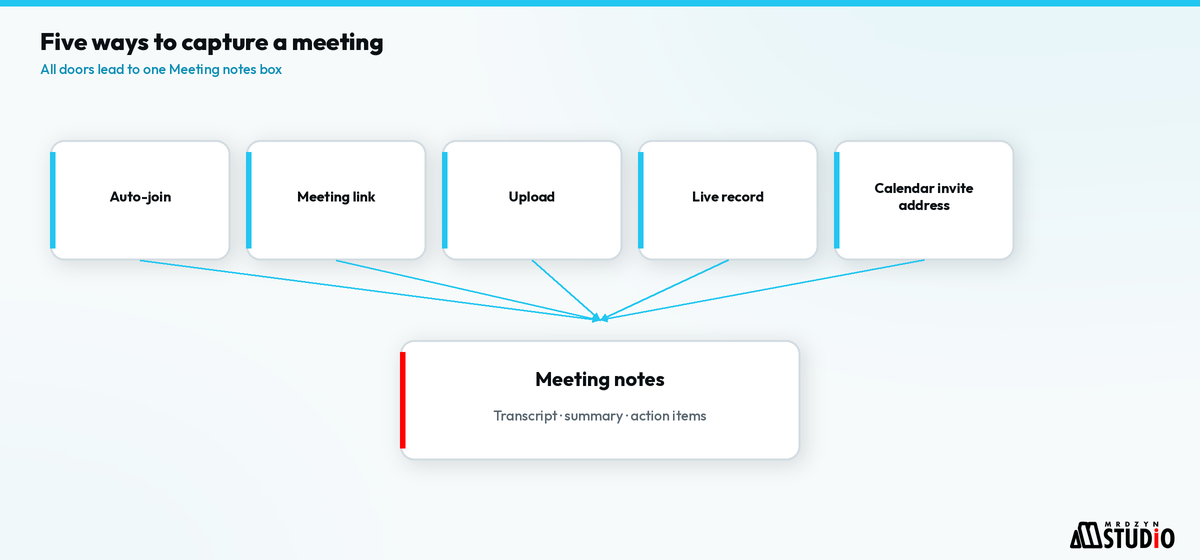
- Capture via calendar auto-join, meeting link, upload, live record, or the planned-meeting assistant address shown in-product.
- Push outcomes to email, Notion/OneNote/OneDrive, CRM/ATS, or Zapier instead of leaving notes trapped in the notetaker.
- Ask everyone's permission before recording — do not start capture until people on the call agree.
What Noota is positioning for
In the course I note Noota previously appeared on AppSumo, kept shipping, and markets strongly to HR and hybrid/in-person meeting use cases on its landing pages. They publish compliance framing such as ISO 27001 practices and HIPAA mentions on marketing pages, and the pricing page (checked 9 Nov 2026) states GDPR, EU data residency, encryption, and that meeting data is not used to train AI — verify details in Noota's trust/security docs for your own risk review.
Apps: web, Windows/Mac desktop, mobile (App Store / Google Play), and a Chrome extension, as shown.
Plans (official prices, 9 Nov 2026)
From noota.io/pricing:
| Plan | Price (per user) | Highlights on the page |
|---|---|---|
| Free | €0 / month | Unlimited meeting notes* with 1 month storage; web/mobile/desktop; EU hosting; no AI training on your data |
| Pro | €19/mo billed annually (€29 monthly) | Invisible recording (no bot), voice typing, 6 months storage, CRM/work-tool sync, access controls, own report templates |
| Business | €39/mo billed annually (€49 monthly) | Automations, email agent, phone calls, unlimited storage, admin/branding, dashboards, MCP & API |
| Enterprise | Custom (50+ seats messaging) | SSO, sovereign hosting options, dedicated support |
*Free “unlimited recording” requires a connected calendar with join-all enabled, and summaries are shared with participants — per Noota's own footnote on the pricing page.
Step 1 — Meeting preferences first
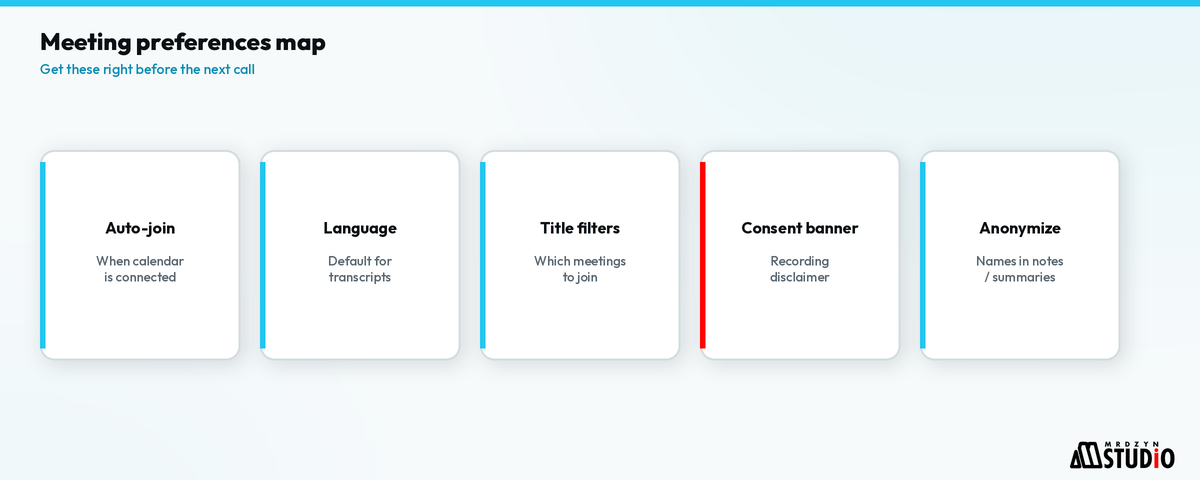
On the home/integrations recap, start with meeting preferences:
- Whether the assistant joins automatically
- Default language
- Recording view (shared screen vs gallery)
- Join timing (on time vs minutes early)
- Rules: all meetings vs external only
- Title filters — e.g. skip when the title contains sensitive / confidential, or capture only when the title contains interview
- Assistant name and avatar
- Recording consent disclaimer when joining
- Whether to show full participant names or anonymize in transcripts/summaries
- Desktop audio/video recording settings
- Reminder emails and sharing defaults
Get this wrong and you either miss notes or join calls you should not record.
Step 2 — Templates that match the meeting type
Apply a meeting template per meeting (mine starts as generic). You can:
- Use pre-made templates
- Describe a template to AI or upload a structure file
- Attach automations/triggers/integrations
- Add scorecards, generate clips, draft follow-up emails, and guidelines
Discovery calls, interviews, and internal standups should not share one vague template if you care about consistent action items.
Step 3 — How notes get captured
From the plus / join flows shown:
- Automatic join when the calendar integration is live (assistant joins on schedule).
- Online meeting — paste the meeting link.
- Upload a recording file for after-the-fact AI notes.
- Live recording for in-progress capture.
- Planned meetings — add the Noota assistant using the in-product address pattern shown (in the course: notes@noota.io style invite).
Afterward, open the meeting: download or share privately, or use a link when you intentionally publish access. Default in my walkthrough stays private to the account.
Step 4 — Integrations that make notes useful
Configure early (as in the course):
- Calendars / mail: Outlook or Gmail
- Notes sinks: Notion, OneNote, OneDrive
- CRM connections (I use HubSpot) and ATS tools for sales/recruiting follow-up
- Post-meeting email drafts
- Zapier for everything else
- Optional dedicated number / voicemail features Noota offers
- Notification routing (email vs in-app only)
Noota also exposes AI agents you can explore or create from a prompt — useful when notes should trigger a repeatable follow-up pattern, not only a PDF.
A simple weekly operating rhythm
Once preferences and a calendar are connected:
- Monday — confirm auto-join rules still match how you work (external-only vs all meetings).
- Each call — glance at the consent banner / assistant name so guests are not surprised.
- After the call — open the Noota summary, fix any wrong action owners, then push to CRM/email/Notion.
- Friday — skim the week’s meetings for open actions that never landed in a tracker.
Noota’s agents and email drafts help with step 3, but someone still owns the promise made on the call. That is the same human-gate idea we use on software delivery.
Who benefits most
The course calls out managers, team leads, consultants, executives, HR, sales, freelancers, and remote workers. Practically:
- Sales / consulting — discovery notes and next steps into CRM.
- HR / recruiting — interview templates and ATS sync (Business/Pro features as sold).
- Founders — fewer “what did we decide?” threads after partner calls.
If you only meet once a month, Free may be enough to test. If you live in back-to-back calls, Pro’s longer storage and CRM sync are the features that matter on the pricing page.
Where this fits in a real Mrdzyn workflow
I use Noota to record my meetings and send minutes to attendees, with HubSpot connected so notes and follow-ups can land in the CRM. Discovery and delivery calls produce decisions that should live there — not in chat scrollback. Noota is the capture layer; Mrdzyn Chatbots and CRM builds on mrdzyn.com/products are where leads and tickets live afterward. Bookings for the free discovery call still go through Google Calendar appointments.
Before any recording starts, ask everyone on the call for permission. That is a courtesy and a trust step — not legal advice.
FAQ
Will clients see a bot?
On Free-style bot join, yes unless you use Pro+ invisible / desktop recording options Noota describes. Pricing FAQ: participants are notified that recording happens.
Is Free enough to test?
Yes for trying summaries with short retention. Move to Pro for longer history, CRM sync, and bot-free capture — per Noota's own plan guidance.
Does Noota replace your CRM?
No. It feeds notes and actions into CRMs/ATS tools when connected.
AppSumo lifetime vs current SaaS?
Historical LTD availability is not a guarantee of today's plan limits. Use current pricing.
Next step
Want meeting notes tied into CRM and follow-up without another spreadsheet? Book a free 15-minute discovery call: calendar.app.google/NJvDbppn2QYqGryb9.